Kindle shows you a flat list of everything you've ever bought. Apple Books isn't much better. No genres, no categories, no easy way to browse. Want to find that sci-fi novel you bought two years ago? Good luck scrolling.
eBookSort fixes this. It’s a book sorter for your Kindle and Apple Books library: it reads your data and automatically groups everything by genre. Import your Audible library too for detailed listening stats. View each library on its own or browse your whole ebook collection in one place. Setup takes about five minutes of your time, then your data arrives by email: usually in a day or two from Amazon, and up to a week from Apple. Your library stays on your iPhone.
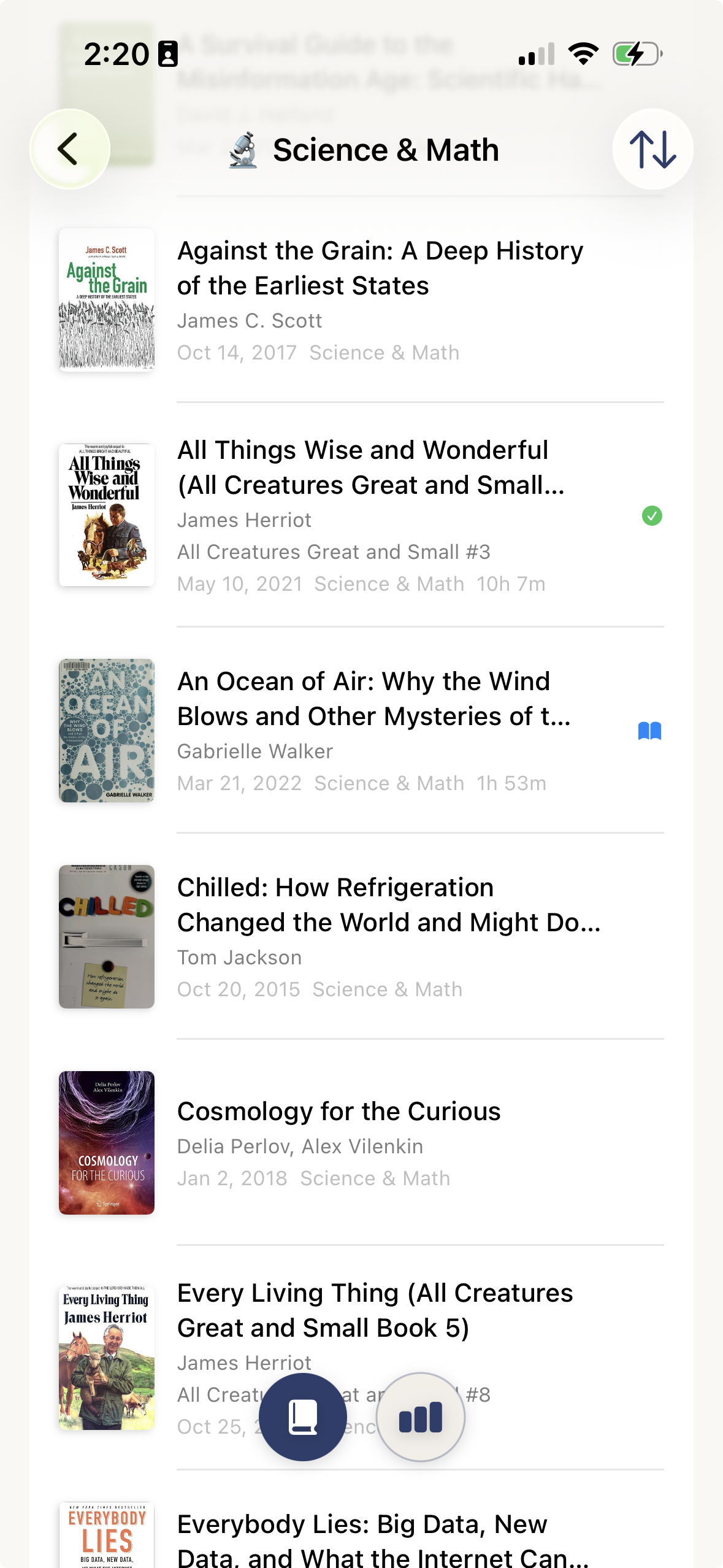
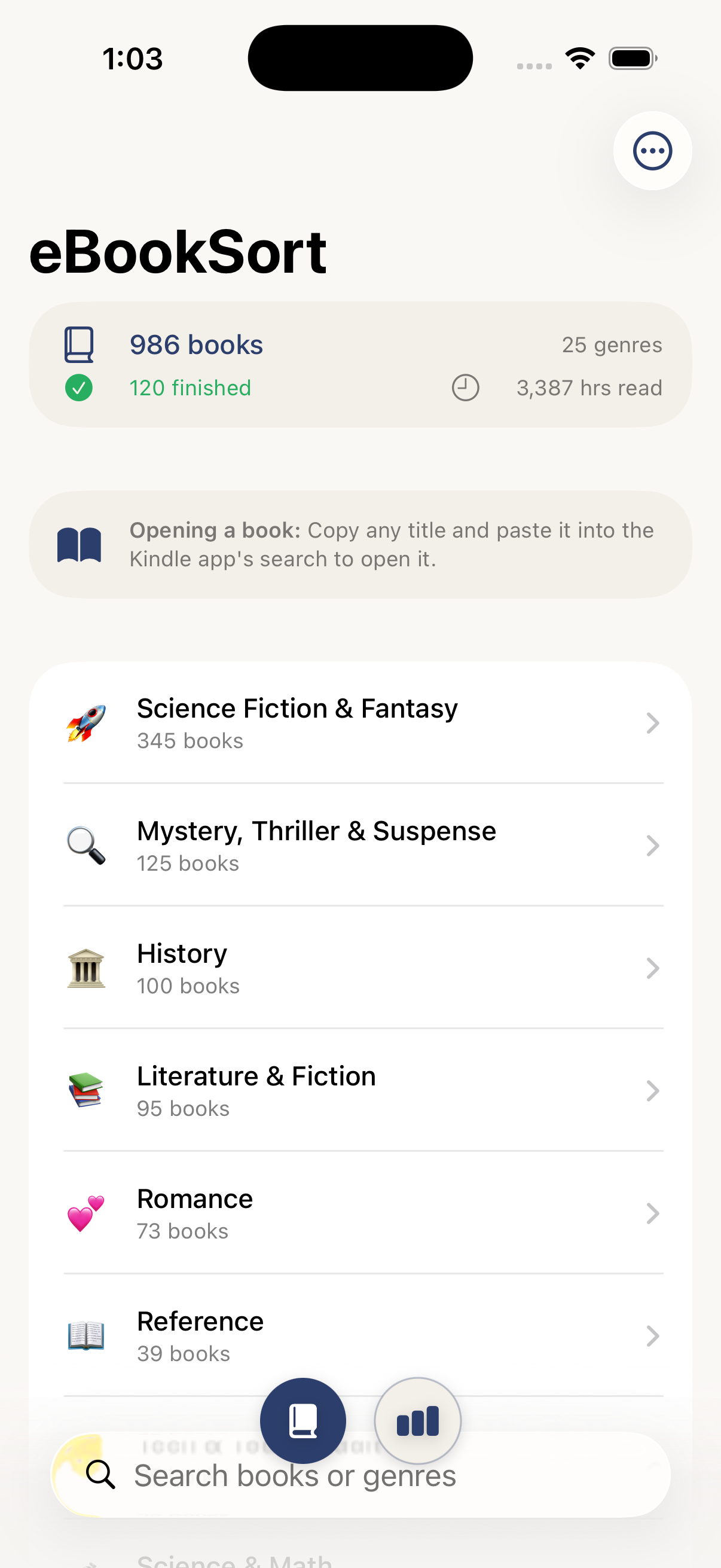
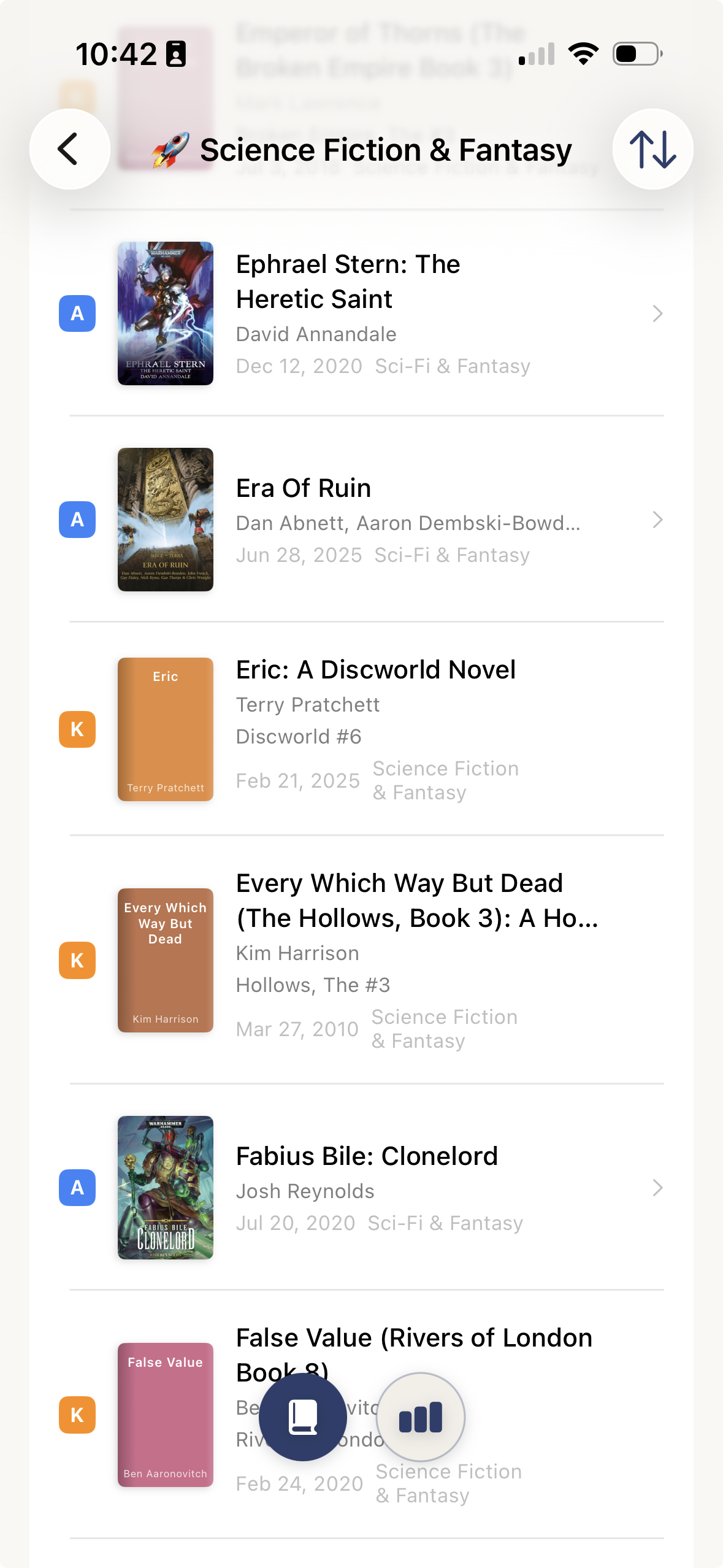
Groups your books into genres — sci-fi, mystery, history, romance, and more — using metadata from Amazon and Apple Books.
Kindle only. Identifies book series and reading order so you can pick up where you left off or find the next book in sequence.
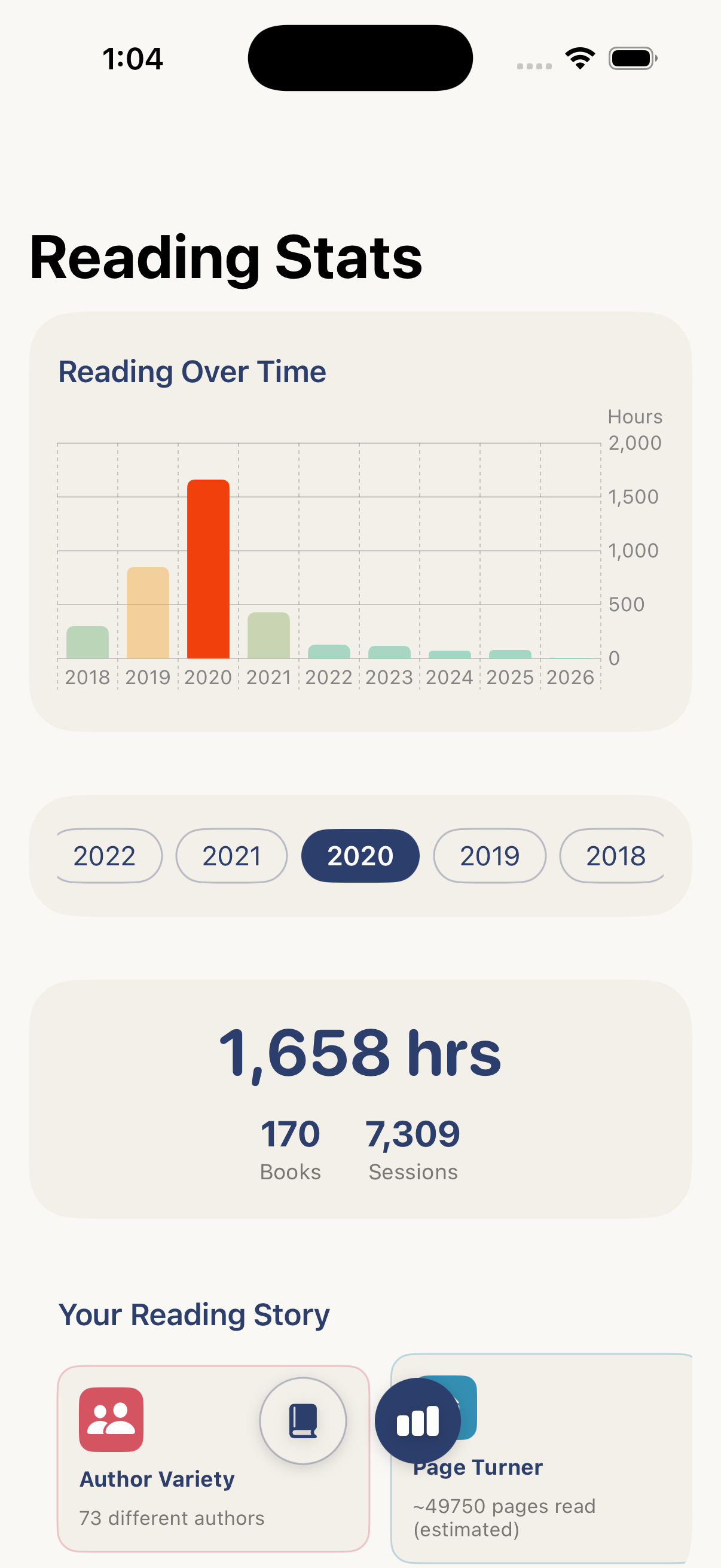
Kindle & Audible. Year-by-year charts, a reading heatmap, fun facts, and achievements. Audible adds listening hours, favorite narrators, narration speed, and completion rates.
Your book data is processed and stored entirely on your iPhone. Apple Books titles come with cover art. Amazon doesn’t provide covers for Kindle books, so eBookSort looks them up online and they fill in gradually. Everything else works offline.
Your library stays on your iPhone. No accounts, no tracking, no analytics. The app only goes online to look up covers and book details, using titles, authors and Apple book IDs with Apple, Google Books and Open Library.
Categorization depends on Amazon and Apple metadata, which isn't always perfect. Most books land in the right place; a few might not.
Browse your library by genre, dive into any category, and track your reading habits with colorful charts and insights.
Import your Kindle library, Audible audiobooks, Apple Books, or any combination. Tap a section below for step-by-step instructions.
New to this? Step-by-step guides: request your Kindle and Audible data from Amazon, Kindle reading stats, Audible listening stats, your Audible purchase history and sorting your Kindle library by genre.
Sign in to Amazon, then go to this page:
amazon.com/hz/privacy-central/data-requests/preview.html
Outside the US? Change amazon.com in that address to your local Amazon store, such as amazon.co.uk, amazon.ca or amazon.com.au.
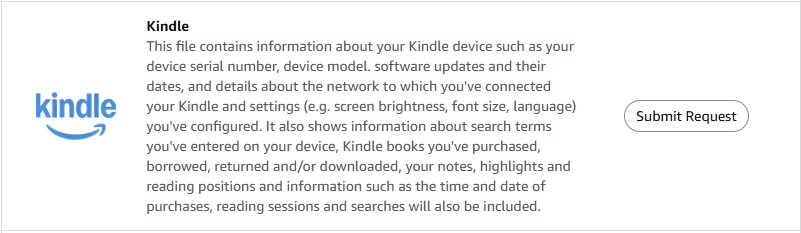
Scroll down to Kindle and click Submit Request.
Check your email and tap Confirm Data Request.
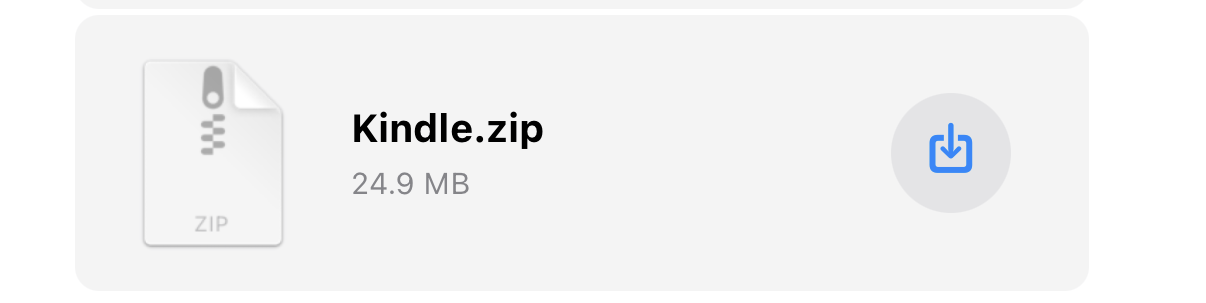
In one or two days you will get an email with an attachment called kindle.zip. (If there's also a .csv file, you can ignore it.)
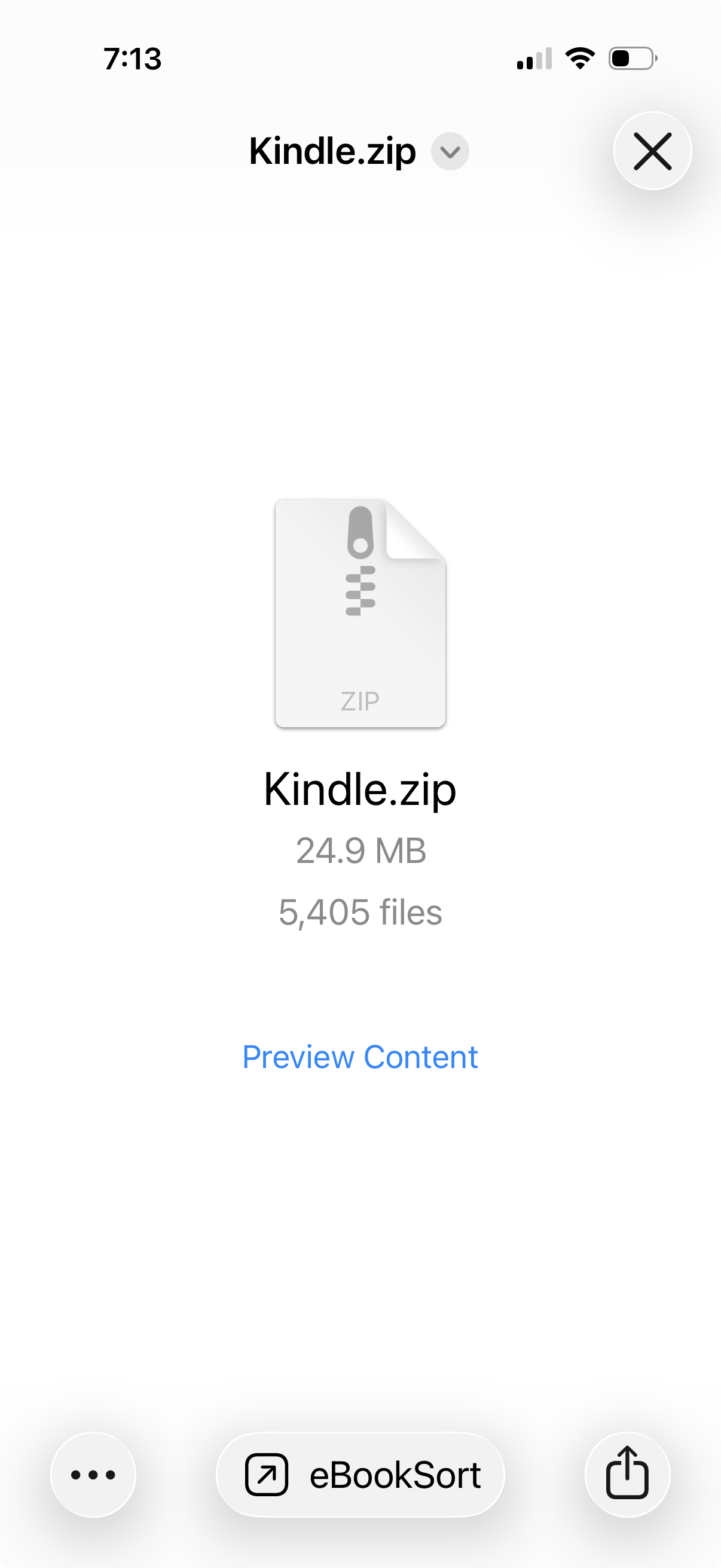
Open the email on your iPhone and tap the zip file icon.
A preview will appear.
Tap the Share button (the square with an upward arrow) at the bottom of the screen.
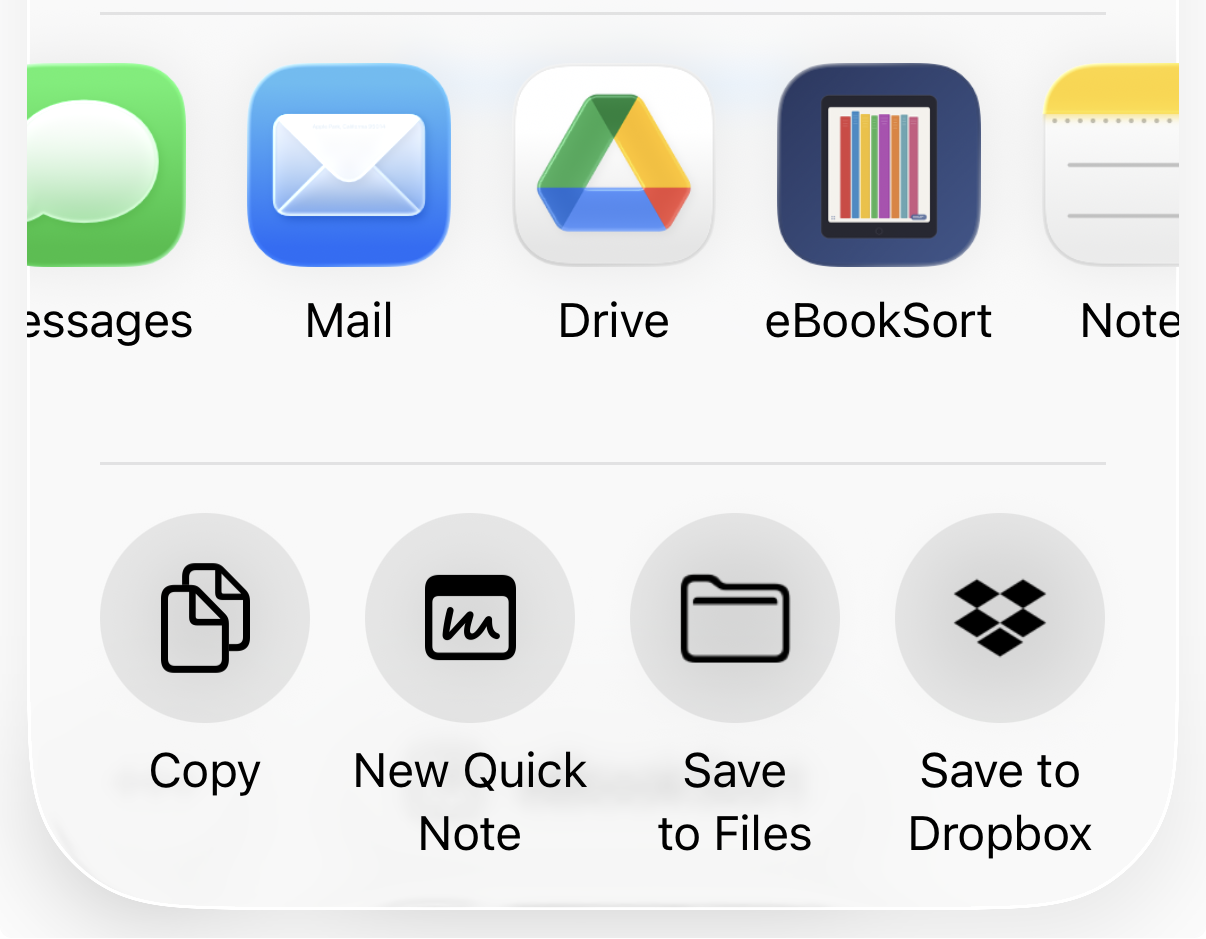
Look for eBookSort in the app list. You may need to scroll or tap More to find it.
Sign in to Amazon, then go to this page:
amazon.com/hz/privacy-central/data-requests/preview.html
Outside the US? Change amazon.com in that address to your local Amazon store, such as amazon.co.uk, amazon.ca or amazon.com.au.
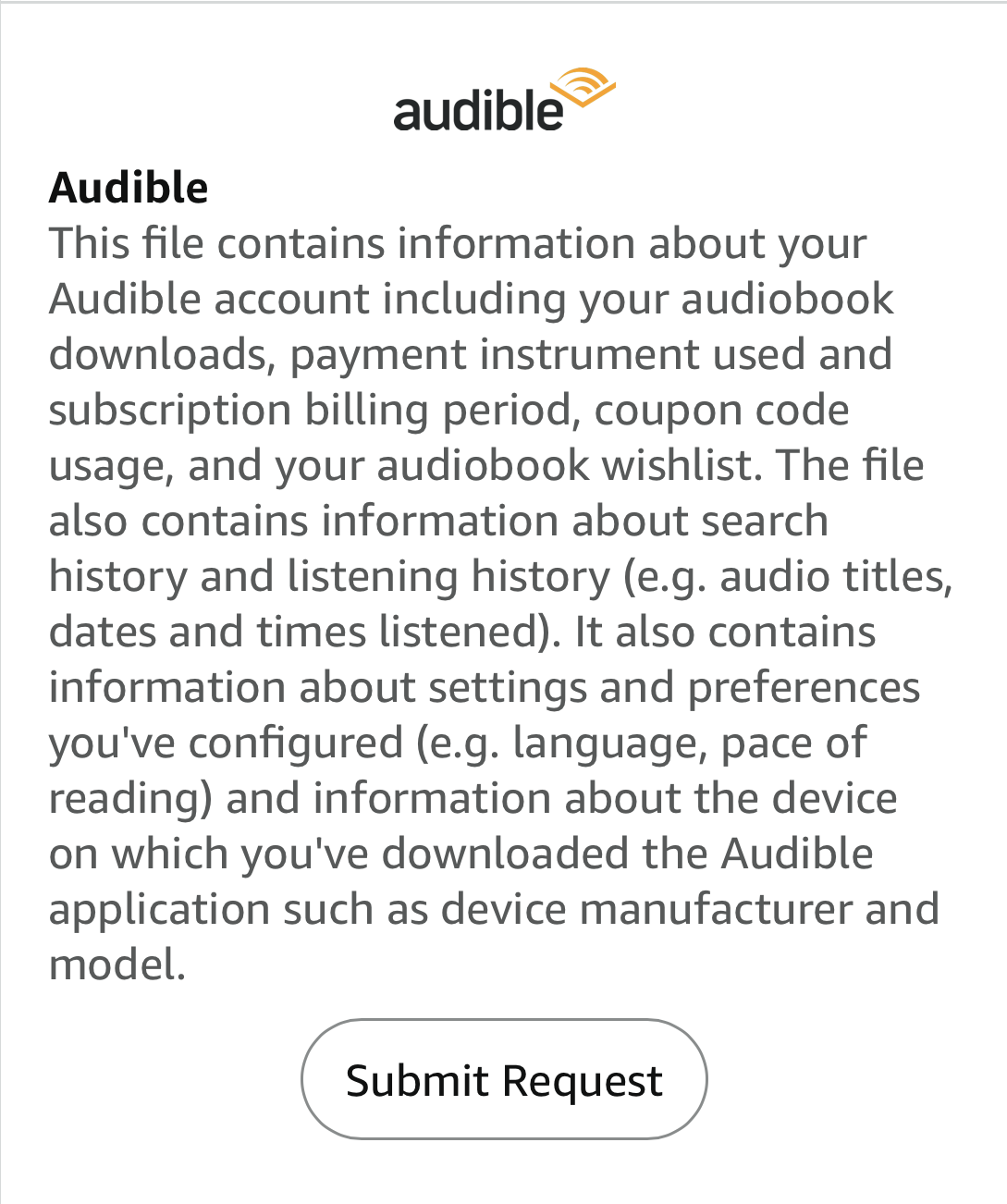
Scroll down to Audible and click Submit Request.
Check your email and tap Confirm Data Request.
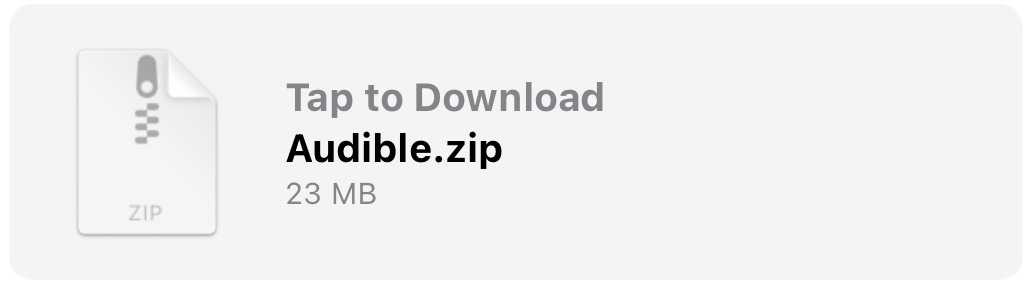
In one or two days you will get an email with an attachment called Audible.zip. (If there's also a .csv file, you can ignore it.)
Open the email on your iPhone and tap the zip file icon.
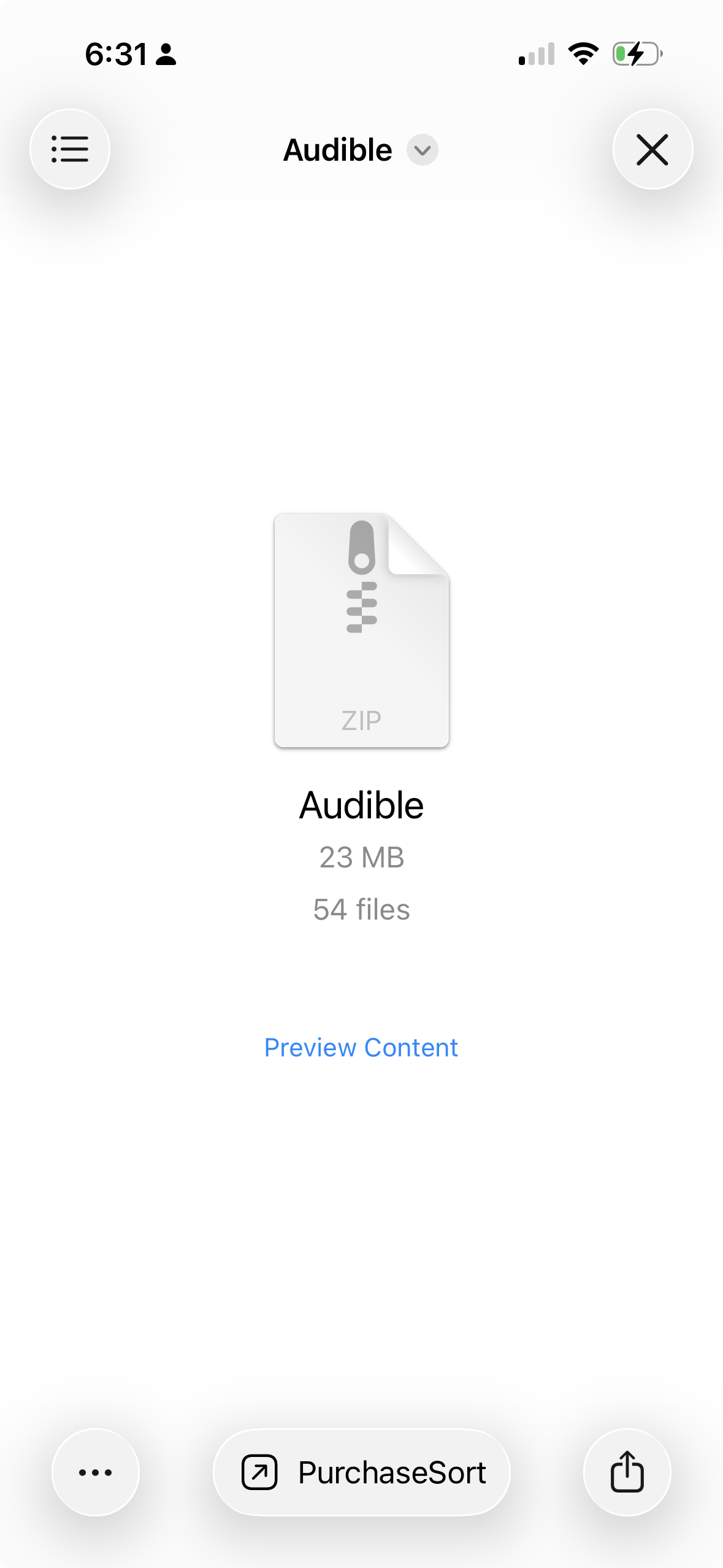
A preview will appear.
Tap the Share button (the square with an upward arrow) at the bottom of the screen.
Look for eBookSort in the app list. You may need to scroll or tap More to find it.
Go to Apple's privacy portal and tap Request a copy of your data:
privacy.apple.com
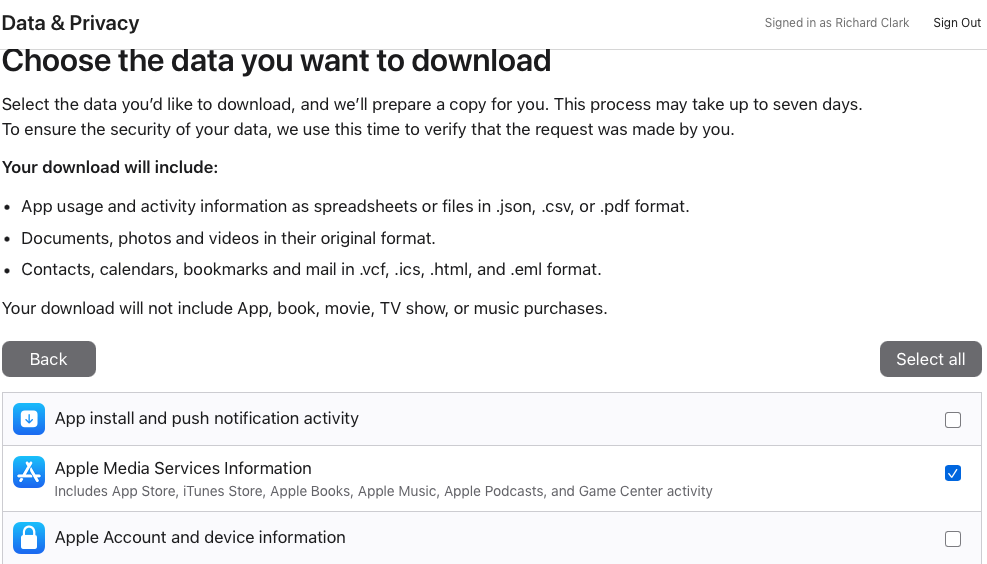
Check Apple Media Services Information — this includes Apple Books, App Store, iTunes, Apple Music, and Game Center.
Tap Continue at the bottom of the page, then tap Complete Request.
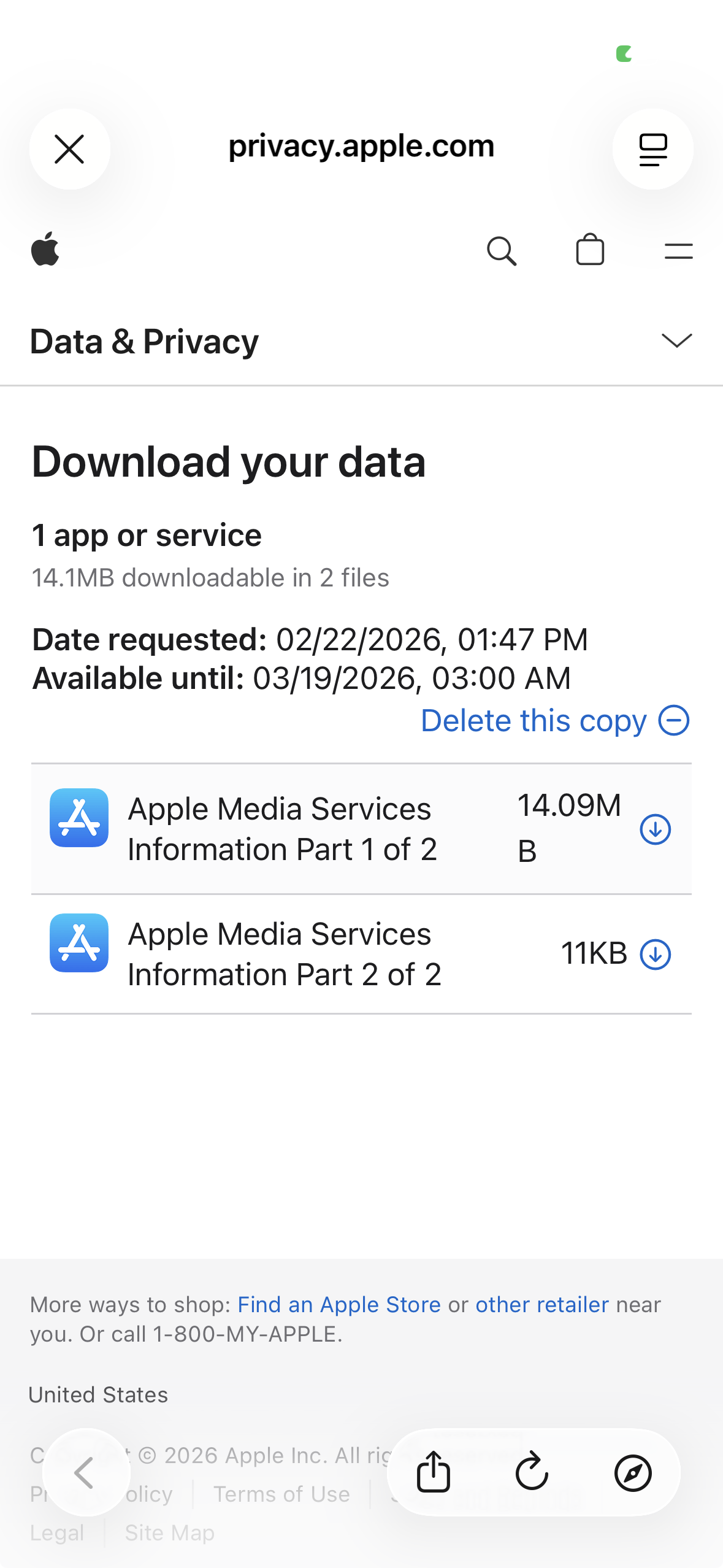
Apple will email you when your data is ready — this usually takes up to a week. On your device, tap the link in the email and it will take you to this screen:
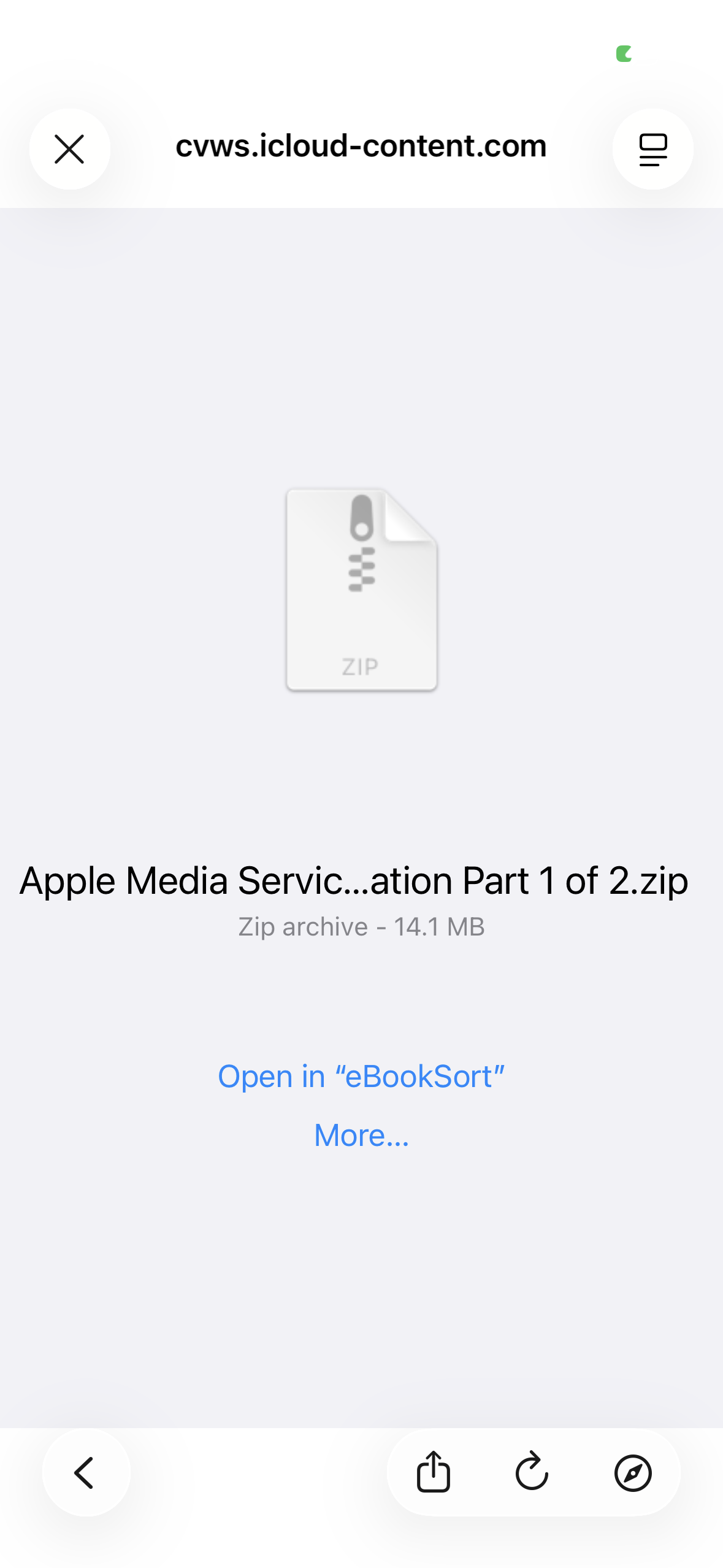
Tap the download button on each file one at a time. A window will appear — tap Open in "eBookSort". If you don't see it, tap More... to find eBookSort.
Repeat Step 5 for each file listed. Not all files will contain book data — eBookSort will automatically skip anything that doesn't.
eBookSort processes everything on your iPhone. Your library is never uploaded — no accounts, no servers, no tracking. The app reads the files Amazon and Apple already gave you and organizes them. It only goes online for covers and book details: it sends a book’s title and author, or its Apple book ID, to Apple, Google Books or Open Library. The privacy policy has the details.