How to see your full Audible purchase history
To look up past orders, sign in at audible.com and open Account details → Purchase history. For your whole library in one file, with every title’s purchase date, length, narrator, series and whether you’ve finished it, request your Audible data from Amazon. It arrives as Audible.zip in a day or two, and eBookSort opens it on your iPhone.
Where Audible shows your purchases
On a computer or in your phone’s browser, sign in at audible.com, open your account menu, choose Account details, then Purchase history. You can pick a date range and see each order with its date and how you paid: a credit or money. Menu names vary a little between Audible’s country sites.
That’s fine for finding one order. It’s harder to use as a record of everything you own: you page through orders a date range at a time, it doesn’t show what you’ve listened to, and there’s no button to download it as a list.
Get every audiobook in one file
Amazon keeps a full copy of your Audible library and will send it to you. Sign in to Amazon, go to its data request page, scroll to Audible and click Submit Request. Confirm the email Amazon sends you. Our step-by-step guide has pictures of each screen.
Outside the US? Change amazon.com in that address to your local Amazon store, such as amazon.co.uk, amazon.ca or amazon.com.au.
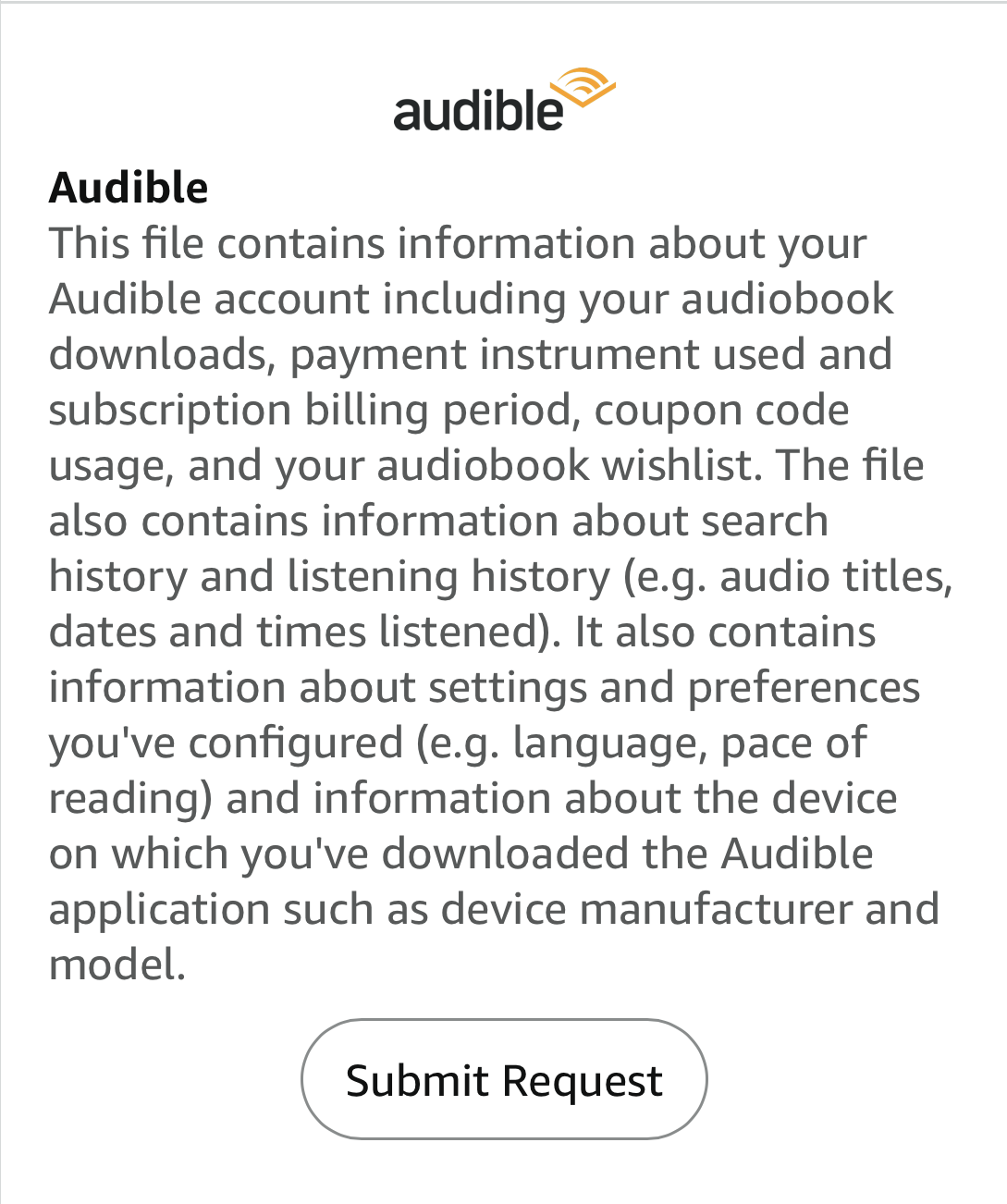
In a day or two you’ll get an email with Audible.zip. Inside, the Library folder has Library.csv: one row per audiobook in your library, with
- the title and authors,
- the purchase date,
- the length in minutes and the narrator,
- the series it belongs to,
- whether you’ve finished it,
- and how it came to you (the ownership type).
You can open Library.csv in Excel, Numbers or Google Sheets and sort it by purchase date. The zip also holds your listening history and your ratings.
Or open it in eBookSort
Open the email on your iPhone and tap the zip file. When the preview appears, tap the Share button, then choose eBookSort. You may need to scroll or tap More to find it. Downloaded it on a computer instead? Save the zip to iCloud Drive, AirDrop it to your iPhone or email it to yourself, then tap Browse for Zip File in eBookSort.
eBookSort shows your Audible library as books with covers, which you can sort by the date you bought them, title, author, series or listening time. It also reads the listening history in the same zip, so you get your Audible listening stats: hours listened, books finished, favourite narrators and more.
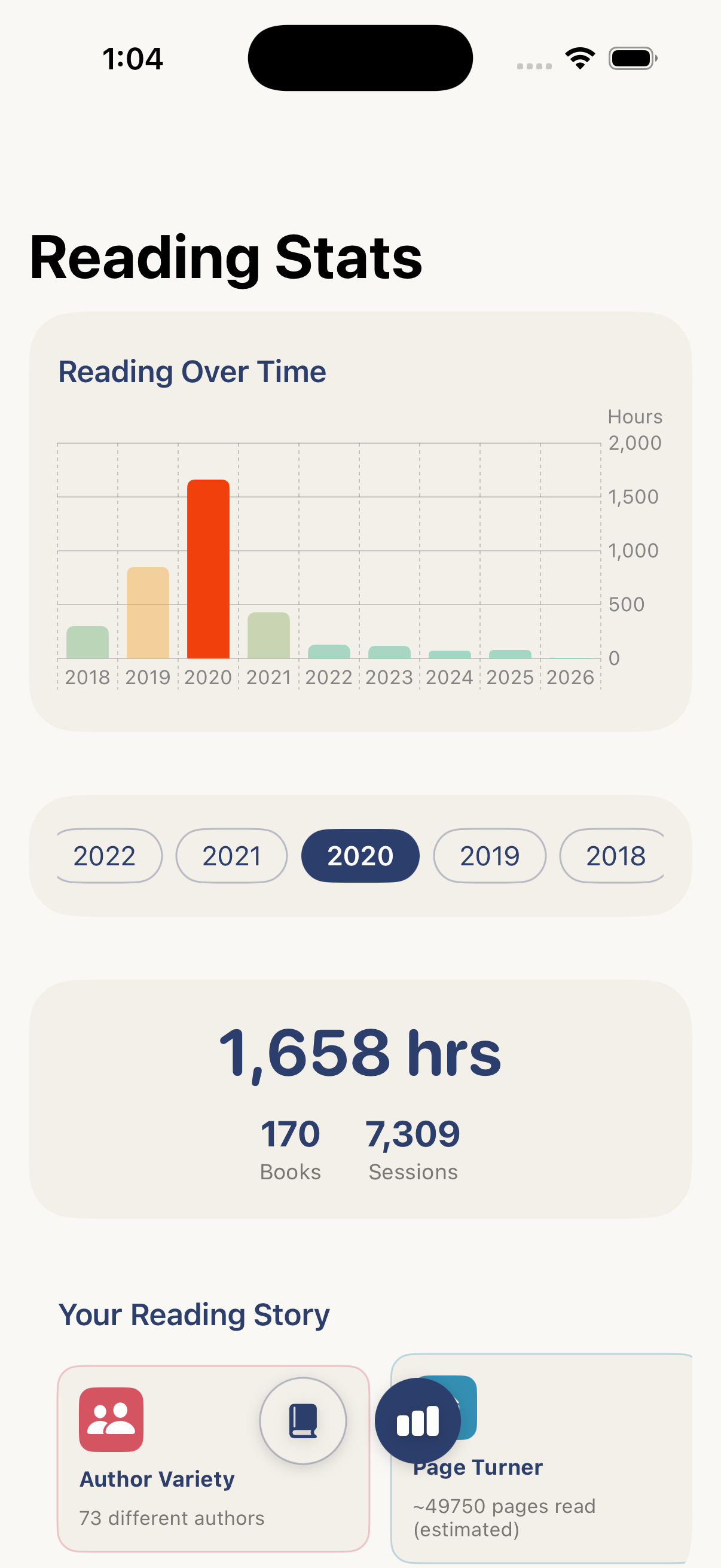
Audible’s export doesn’t include genres, so audiobooks sit under Uncategorized in eBookSort’s genre view. Your Kindle and Apple Books libraries are sorted into genres.
Questions
Can I see my Audible purchase history in the app?
The Audible app shows your library, not your orders. For orders, use Purchase history on audible.com.
How far back does the export go?
Library.csv lists the audiobooks in your library now, each with its purchase date, back to your first one.
Do I have to do this again for new purchases?
Only if you want them in eBookSort. Request a new export whenever you like; importing it again brings in the newer titles.
What stays on your phone
eBookSort stores your library on your iPhone, with no account and no tracking. It only goes online to look up covers and book details, sending a book’s title and author to Google Books or Open Library. Read the privacy policy for details.