Audible listening stats: hours listened, history and favourite narrators
The Audible app shows some listening stats in your profile. Your complete history, every listening session since you joined, is in your Audible data from Amazon: request it, and in a day or two you get Audible.zip. eBookSort turns it into total hours, hours by year and month, books finished, favourite narrators and the narration speed you listen at.
What the Audible app shows
In the Audible app, your profile has a stats section with your listening time and the badges you’ve earned. It’s a running total: it won’t tell you how many hours you listened in 2023, which books took the longest, or which narrator you’ve spent the most time with.
Your full listening history
Amazon records every listening session and will send you the lot. Sign in to Amazon, go to its data request page, scroll to Audible, click Submit Request and confirm the email. See the step-by-step guide if you want pictures.
Outside the US? Change amazon.com in that address to your local Amazon store, such as amazon.co.uk, amazon.ca or amazon.com.au.
The zip that arrives has a listening file with one row per session: the book, the day, how long you listened, where you started and stopped, and the narration speed. Your library file adds each book’s length, narrator and whether you finished it.
Turn it into stats with eBookSort
Open the email on your iPhone and tap the zip file. When the preview appears, tap the Share button, then choose eBookSort. You may need to scroll or tap More to find it. Downloaded it on a computer instead? Save the zip to iCloud Drive, AirDrop it to your iPhone or email it to yourself, then tap Browse for Zip File in eBookSort.
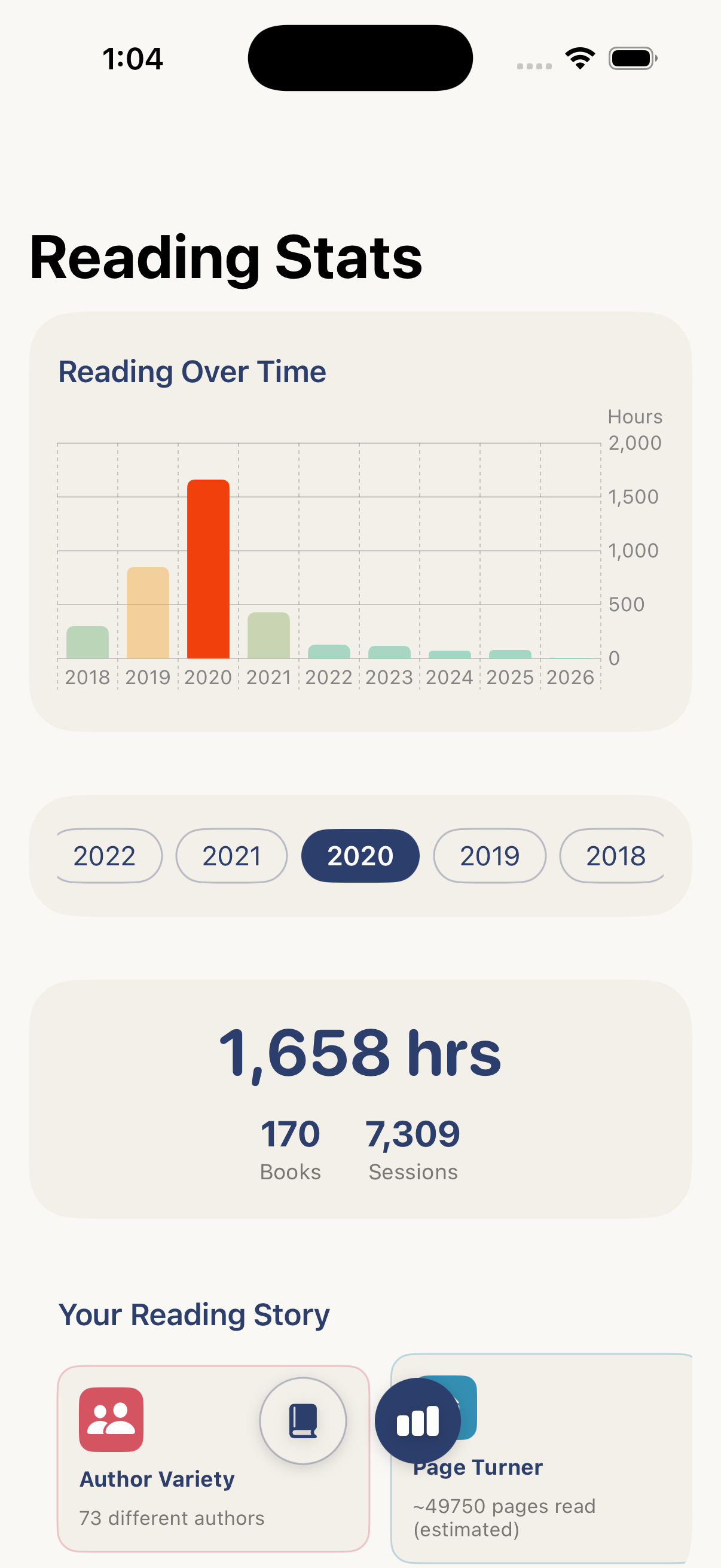
From those files eBookSort works out:
- Hours listened, in total and by year,
- listening over time: a chart by month and a calendar heatmap of the days you listened,
- books listened to and how many you finished,
- your favourite narrators, by hours,
- the narration speed you usually listen at,
- your longest listening streak and a few fun facts.
Audible’s export gives the date of each session but not the time, so there’s no time-of-day chart for audiobooks. Kindle reading sessions have it.
Reading on Kindle too?
Import your Kindle data as well and eBookSort shows books and audiobooks together, or each on its own. See Kindle reading stats.
Questions
How do I see how many hours I’ve listened on Audible?
The app’s profile shows a running total. For hours by year, month and book, use the listening file in your Audible data export.
Does the export include books I returned?
Listening sessions stay in the history even if a book is no longer in your library. eBookSort counts the hours and shows the book as no longer in your library.
Can I see my listening history without the app?
Yes. The listening file is a CSV that opens in Excel, Numbers or Google Sheets. You’d add up the durations yourself.
What stays on your phone
eBookSort stores your library on your iPhone, with no account and no tracking. It only goes online to look up covers and book details, sending a book’s title and author to Google Books or Open Library. Read the privacy policy for details.